How to Automate TradingView Watchlist Alerts Into Live Trades
Quick Summary
TradingView's watchlist alert feature lets you apply one strategy to dozens of trading pairs at once. Combined with TV-Hub's webhook automation, a single alert setup can execute trades across your entire watchlist automatically. This guide walks through the video tutorial step by step and adds practical tips for getting the most out of it.
Key Takeaways
- TradingView's "Create Alert on List" feature applies one strategy alert to every symbol in a watchlist simultaneously
- The
{{ticker}}placeholder makes trade commands dynamic, so one alert fires correctly for any pair - 42% of traders now prefer automated execution for speed and accuracy (BRI, 2026)
- You can go from zero to fully automated watchlist trading in under 5 minutes
What Are TradingView Watchlist Alerts?
TradingView now serves over 100 million registered traders worldwide (TradingView, 2025). One of the platform's newer features is the ability to create alerts on an entire watchlist at once, not just a single chart.
Traditionally, you'd have to set up alerts symbol by symbol. Got 20 pairs you're watching? That's 20 separate alerts to configure. Watchlist alerts change that completely. You create one alert, pick your strategy or condition, and TradingView applies it across every symbol in the list.
When any symbol in that watchlist meets your condition, the alert fires. The trigger includes which specific pair caused it, so downstream tools know exactly what to trade. Why does that matter? Because it's what makes full automation possible.
But an alert by itself doesn't execute anything. It just sends a notification. To turn that notification into an actual trade, you need a bridge between TradingView and your exchange. That's what TV-Hub does, and it's what the video above walks you through.
Why Should You Automate Watchlist Alerts?
The automated algo trading market hit $27.17 billion in 2026, growing at a 13.2% CAGR (Research and Markets, 2026). And for good reason. Manual execution is the bottleneck that kills most retail strategies.
Think about what happens without automation. Your alert fires at 3 AM. You're asleep. By the time you see it and log into your exchange, the entry is gone. Or you're awake, but you hesitate, second-guess the signal, and miss the window anyway. Sound familiar?
Watchlist alerts make this worse in one specific way: they trigger for multiple pairs. If your strategy signals on three different symbols within an hour, you'd need to manually execute three separate trades with the right position sizes, stop losses, and take profits. That's where mistakes creep in.
Automating the entire flow solves all of this. The alert fires, the webhook sends the trade command to TV-Hub, and your exchange executes the trade. No hesitation, no typos, no missed entries. Every pair in your watchlist gets the same disciplined execution.
What we've seen on our platform:
Traders who automate watchlist alerts typically monitor 15-30 pairs with a single alert setup. Doing this manually would require managing each pair individually, which is both error-prone and time-consuming. The ones who automate don't just save time, they catch trades they would have otherwise slept through.
How Do You Set Up Automated Watchlist Alerts?
TradingView doubled its alert limits across all plans in 2023, with paid tiers now supporting up to 2,000 simultaneous alerts (TradingView Blog, 2023). Here's how to set up one watchlist alert that handles multiple pairs automatically.
Step 1: Create Your Watchlist
In TradingView, create a new watchlist and give it a descriptive name (e.g., "Altcoin Momentum Picks" or "BTC Pairs"). Add every trading symbol you want your strategy to monitor. You can always add or remove symbols later without recreating the alert.
Step 2: Set the Alert Condition
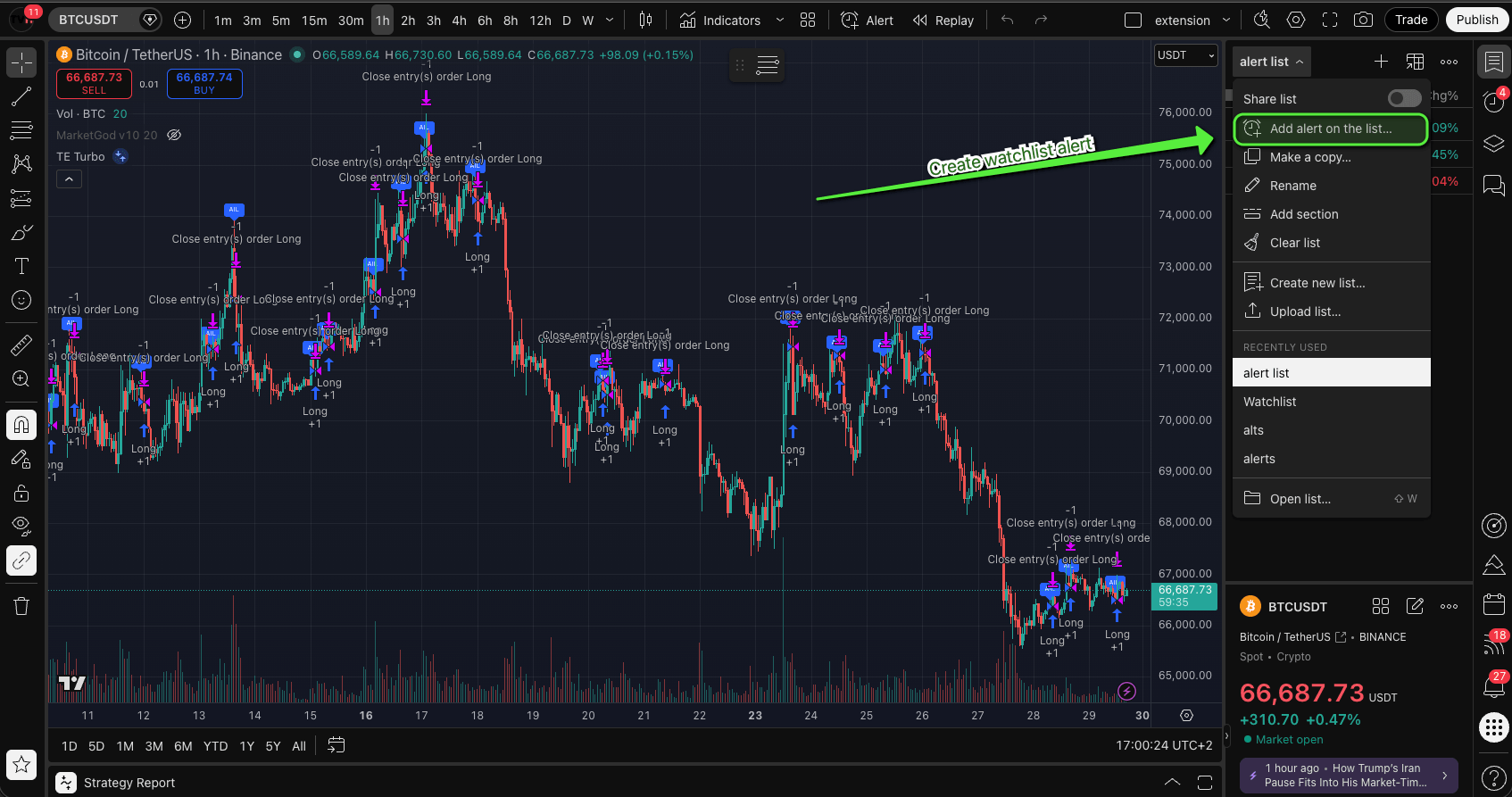
Click the "Create Alert on List" button. This opens the standard alert dialog, but it now applies to the whole watchlist. Choose your Pine Script strategy or built-in condition. Whatever you pick runs across every symbol in the list.
Step 3: Build Your Trade Command in TV-Hub
Head over to TV-Hub and open the trade command builder. Select any trading pair for now (you'll make it dynamic in the next step). Configure your trade parameters:
- Trade size — absolute value, percentage of balance, or risk-based
- Stop loss — percentage or fixed price (e.g., 1.5%)
- Take profit — percentage or fixed price (e.g., 2%)
- Close Current Position — enable this if your strategy flips between long and short
Hit the Generate button and copy the trade command to your clipboard.
Step 4: Make It Dynamic With the Ticker Placeholder
This is the key step. Paste your trade command into TradingView's alert message field. Then replace the hardcoded trading pair with {{ticker}}. This TradingView placeholder automatically inserts the correct symbol when the alert fires.
So if your watchlist contains BTCUSDT, ETHUSDT, and SOLUSDT, and the alert triggers on ETH, the trade command will automatically say ETHUSDT. One command, any pair. No manual changes needed.
Step 5: Enable Webhooks and Create
Switch to the Notifications tab in the alert dialog. Make sure Webhook URL is enabled and paste your TV-Hub webhook URL. If you haven't set up webhooks before, check the TradingView alerts setup guide for the full walkthrough.
Choose your time frame, click Create, and you're done. Every symbol in your watchlist is now monitored and automated.
Automate Your Watchlist in Under 5 Minutes
TV-Hub connects to 6 exchanges and executes TradingView webhook signals automatically. Start your free trial.
Start Free Trial View DocumentationWhat Makes Dynamic Watchlist Alerts So Powerful?
Global crypto ownership hit 562 million in 2024, up 34% from the prior year (Triple-A, 2024). More traders means more pairs to monitor, and that's exactly where dynamic alerts shine.
Ever tried managing 25 separate trade commands? The {{ticker}} placeholder isn't just a convenience. It's what makes the whole system scale. Without it, you'd need a separate trade command for every single pair. With it, one command handles them all.
Here's a practical example. Say you're running an RSI-based mean reversion strategy. You add 25 altcoin pairs to your watchlist. One alert, one trade command. When LINKUSDT hits oversold and triggers, TV-Hub executes a LINK trade. Ten minutes later, AVAXUSDT triggers. Same command, different pair, automatic execution. You didn't touch anything.
The Close Current Position option in TV-Hub adds another layer. If your strategy generates both long and short signals, enabling this setting means a new signal automatically closes whatever's open before entering the new direction. No leftover positions, no conflicting trades.
Want to adjust your strategy? Update the watchlist. Add new pairs, remove underperformers. The alert keeps running with the same command. You don't need to rebuild anything. If you're running market neutral strategies across multiple pairs, this kind of scaling is what makes the approach practical.
What Should You Watch Out For?
According to a Business Research Insights report, 42% of traders prefer automated execution specifically for speed and reduced emotional interference (BRI, 2026). But automation only works well when it's set up right. Here are the things worth getting right from the start.
Use percentage-based or risk-based position sizing. Absolute values don't scale across pairs with different prices. Setting your trade size as a percentage of available balance (like the 20% shown in the video) keeps your risk consistent whether you're trading BTC at $85,000 or DOGE at $0.15.
Keep your stop loss and take profit tight at first. The video uses 1.5% stop and 2% take profit. That's a reasonable starting point for testing. You can widen them later once you've confirmed your strategy works across the full watchlist.
Know your alert limits. TradingView's free plan is capped at 3 active price alerts and 0 technical alerts (as of July 2026), with no webhooks, so it can't drive indicator-based watchlist automation. You can still forward those 3 price alerts to TV-Hub by email for simple price-level triggers, but the paid tiers (Essential, Plus, Premium and Ultimate) raise the alert ceiling as you move up, with webhooks unlocked from Essential. If you run multiple watchlists with different strategies, check your plan's limit before you build them all out.
Test with paper trading first. Several exchanges supported by TV-Hub offer demo or paper trading environments. Run your automated watchlist through a test account for at least a week before going live. The worst time to discover a configuration mistake is with real money.
Don't add too many correlated pairs. If your watchlist is all BTC-correlated alts, they'll likely trigger at the same time during a market move. That means multiple simultaneous entries in the same direction. Think about diversifying your watchlist across different correlation clusters.
From our support data:
The most common mistake we see with watchlist automation? Traders adding 50+ symbols and then wondering why they got 12 fills in the same 5-minute candle. Start with 10-15 uncorrelated pairs, run it for a week, and scale up from there. The traders who do this consistently outperform the ones who go all-in on day one.
The Bottom Line
TradingView's watchlist alert feature turns what used to be a tedious, symbol-by-symbol process into a one-time setup. Add the {{ticker}} placeholder and TV-Hub webhooks, and you've got a system that monitors and trades across dozens of pairs without you lifting a finger.
The setup takes less than 5 minutes. The video at the top walks through every click. And once it's running, the only maintenance is curating your watchlist, which is the part you should actually be spending your time on.
If you're new to TradingView automation, our complete automation guide covers the full picture. If you're ready to start, hit play on the video and follow along.
Frequently Asked Questions
{{ticker}} placeholder maps to the correct symbol format for whichever exchange you've connected.
Start Automating Your Watchlist Today
Join thousands of traders using TV-Hub to turn TradingView alerts into live trades across 6 exchanges.
Start Free Trial View Documentation