TradingView Alert Setup for TVH
Every TVH automation starts with one TradingView alert. Get its three fields right — Webhook URL, Message, trigger frequency — and the rest of the integration is mechanical.
- Frequency: "Once Per Bar Close" for non-repainting signals; let strategies emit their own per-order alerts.
- Webhook URL: paste the TVH endpoint from Webhook URLs & IPs.
- Message: paste the JSON trade command from the Trade Command Builder or your Pine
alert()call. Enable Send plain text only if you also want Email Backup; it has no effect on the webhook. - Plan: Webhooks require Essential or higher. The Free plan can't drive TVH at all (no webhook channel, and TradingView no longer delivers e-mail alerts on Free).
TradingView plan requirements
Webhook alerts need a paid TradingView plan. The Free plan has no webhook channel, so it can't drive TVH, and TradingView no longer delivers e-mail alerts on Free either, so there's no fallback there. Essential is the practical minimum.
| Plan | Active alerts | Webhooks | TVH |
|---|---|---|---|
| Free | 1 | No | Not usable |
| Essential | 20 | Yes | Yes |
| Plus | 100 | Yes | Yes |
| Premium | 800 | Yes | Yes |
| Ultimate | 2000 | Yes | Yes |
(Plan names and alert quotas reflect TradingView's pricing as of June 2026. Verify on tradingview.com before pricing out a deployment.)
Step-by-step alert creation
Open the chart that already has your indicator or strategy attached, then click the alarm-clock icon in the top toolbar (or press Alt+A). The Create alert dialog opens.
1. Set the condition and expiration
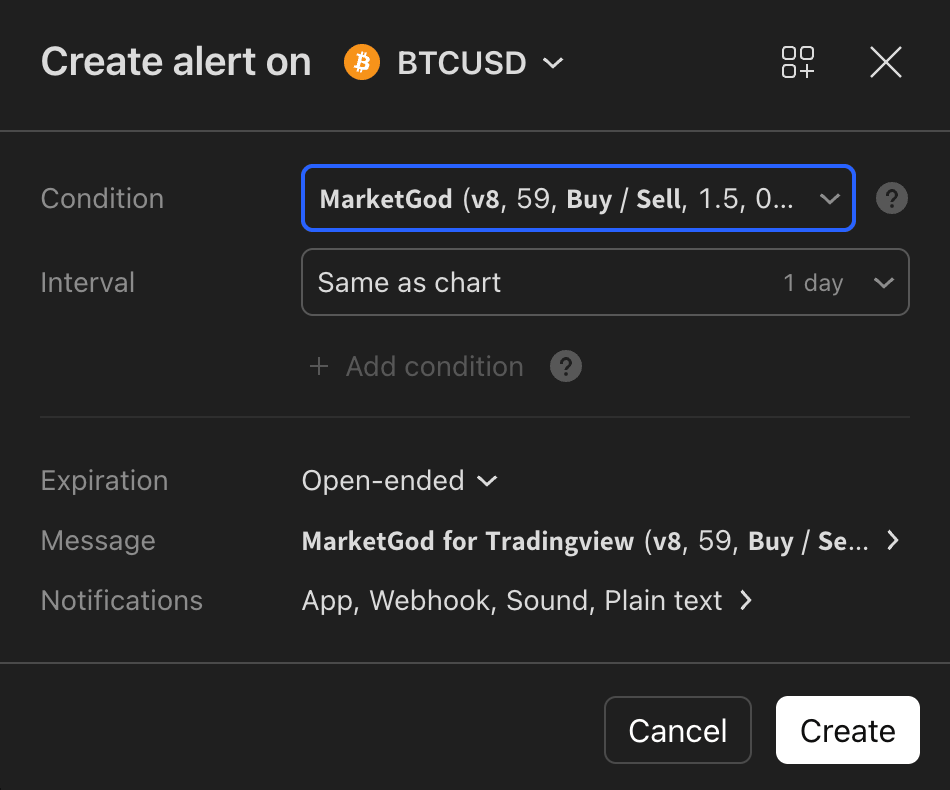
- Condition: select your indicator or strategy, then the specific plot or signal. For an indicator, set the trigger frequency to Once Per Bar Close (see the frequency modes below). Strategies keep "Order fills only".
- Expiration: Premium and Ultimate accounts can choose Open-ended. Lower tiers cap at about two months.
The Message and Notifications rows are where the TVH wiring happens. Set them next.
2. Open the Message editor
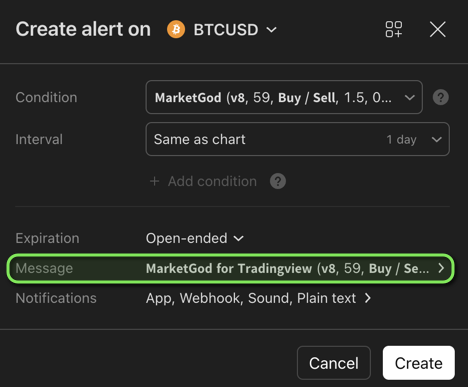
Click the Message row to open the editor.
3. Paste your trade command JSON
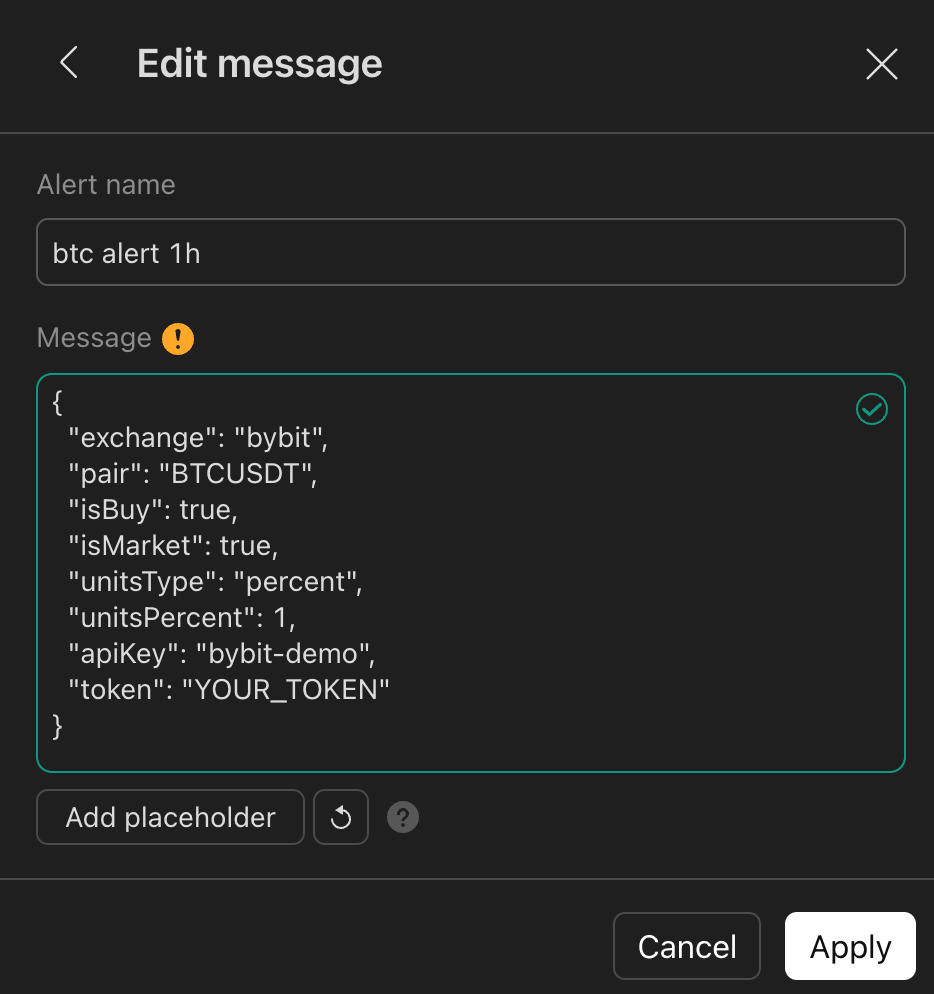
Give the alert a name, then paste the JSON from the Trade Command Builder (or your Pine alert() output) into the Message box. A green check mark means TradingView parsed it as valid JSON.
When your payload uses nested placeholders, such as "alertTimestamp": "{{ticker}}-{{time}}", TradingView shows an orange warning like "You're probably typing JSON, make sure it is correct. Expected ',' or '}' ...".
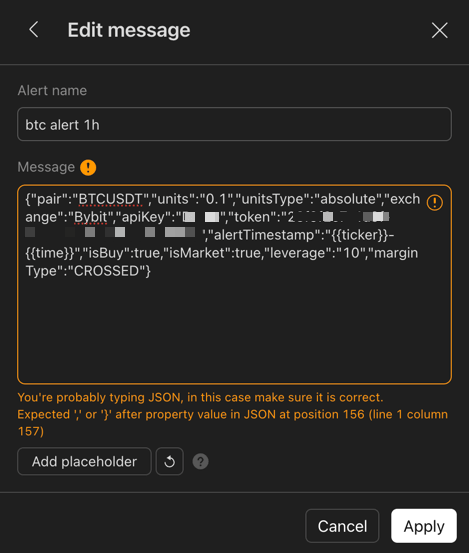
This is harmless. TradingView's validator cannot parse nested {{...}} placeholders and raises a false positive, but it still sends the message exactly as written. TVH substitutes the placeholders and parses the payload fine. Save the alert and ignore the warning. The alerts work.
4. Open the Notifications editor
Back on the main dialog, click the Notifications row.
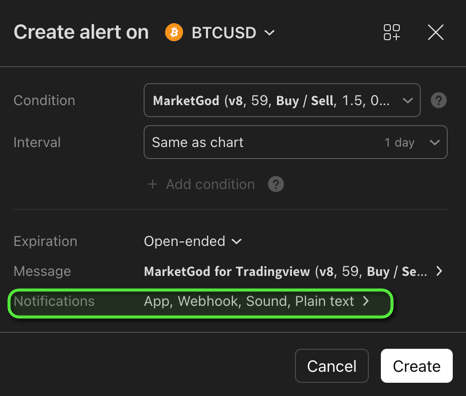
5. Enable the Webhook URL and Send plain text
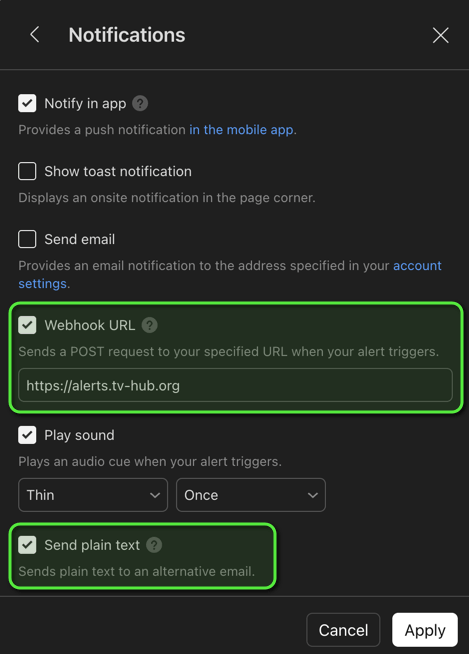
- Tick Webhook URL and paste the TVH endpoint. The default is
https://alerts.tv-hub.org. Usehttps://binance.tv-hub.orgfor Binance Spot or Futures, and the fast-execution (no-queue) variants when you need lower latency. Full list: Webhook URLs & IPs. - Tick Send plain text only if you also use Email Backup. It tells TradingView to send the alert to your alternative e-mail address. It has no effect on the webhook, so leave it off for webhook-only setups.
We strongly recommend enabling Email Backup alongside the webhook. If a webhook is ever lost in transit, the matching e-mail fires the trade a few seconds later, so a single glitch does not cost you a fill. Tick Send plain text and follow the Email Backup setup.
6. Create the alert
Click Create. TradingView fires a request only when the condition triggers. To confirm the wire format, run the alert on a 1-minute chart with a condition that always fires, then check your TVH Activity Log.
Indicator alerts vs strategy alerts
TVH works with both kinds of TradingView alert. The difference is where the JSON in the Message comes from.
Indicator alert. Fires on a single condition, so you set one alert per direction: one alert carries a buy payload, a separate alert carries a sell payload. The Message is a fixed JSON command that you write once. Use this when your signal is a plot or a crossing on an indicator.
Strategy alert. Comes from a Pine strategy() script and can cover entries, exits, and closes from a single alert. Instead of a fixed Message, you use the {{strategy.order.alert_message}} placeholder. TradingView fills it at runtime with whatever the strategy attached to each order, so one alert handles buy, sell, and close dynamically.
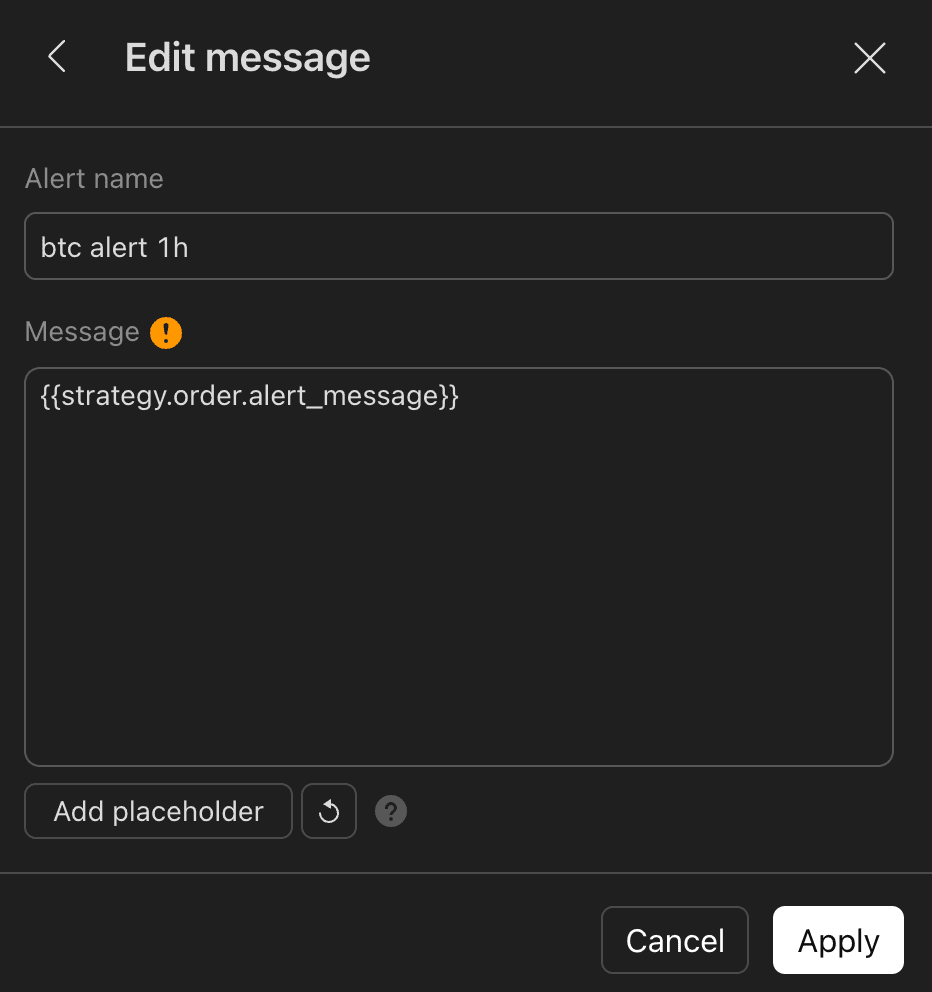
For the full setup of each:
- Indicator Alerts for the one-alert-per-direction pattern.
- Strategy Alerts for the dynamic
{{strategy.order.alert_message}}flow.
"Once Per Bar" vs "Once Per Bar Close" vs "Only Once"
TradingView gives three frequency modes. The wrong one is the most common cause of duplicate or missed trades.
| Mode | When it fires | Use it for |
|---|---|---|
| Once Per Bar Close | After the candle closes. Final, non-repainting value. | Indicator alerts on any timeframe. Safest default. |
| Once Per Bar | Intra-bar, up to once per bar. May fire on a value that later changes. | Rarely. Only when the signal is explicitly real-time and you accept repaint risk. |
| Only Once | First trigger, then alert auto-disables. | One-shot tests, manual confirmations. |
Strategy alerts have a separate mode — Order fills only — that fires once per strategy.entry/exit/close order. Combined with {{strategy.order.alert_message}} it produces clean per-order dispatch. Details on Strategy Alerts.
What "Send plain text" does
TradingView's Send plain text toggle does one thing: it sends the alert to the alternative e-mail address set in your TradingView account. It does not change the webhook payload. The webhook always receives the Message body exactly as you wrote it.
- Webhook-only setups: leave it off. It makes no difference to the webhook.
- Email Backup: turn it on, so the alert also reaches the e-mail address TVH monitors. See Email Backup.
Alert expiration
TradingView alerts have a built-in expiration date that depends on your plan:
- Essential / Plus: typically 2 months from creation.
- Premium / Ultimate: support Open-ended expiration.
Expired alerts stop firing but stay in your dashboard. To resume, open the TradingView Alerts panel, find the alert, and click Resume. The webhook URL and JSON body are preserved — you do not need to recreate the alert.
For long-running automations, prefer Premium+ and tick Open-ended at creation time.
Linking to TVH webhook URLs
TVH exposes four webhook endpoints across two regions and two queueing modes. Pick based on which exchange you trade and whether you want the queue's ordering and retry guarantees or the no-queue path.
| Endpoint | When to use |
|---|---|
https://alerts.tv-hub.org | Default, queued. All exchanges except Binance. |
https://alerts.tv-hub.org/api/ExecuteTradeSignalClassic | Fast execution (no queue), lower latency. All exchanges except Binance. |
https://binance.tv-hub.org | Default, queued. Binance Spot and Futures. |
https://binance.tv-hub.org/api/ExecuteTradeSignalClassic | Fast execution for Binance, lower latency. |
Full list with copy buttons and IP-whitelist values: Webhook URLs & IPs.
What goes in the alert Message?
- Alert Message JSON — what to put in the Message field, plus quote-escaping rules for Pine.
- Indicator Alerts — one alert per direction, static or dynamic JSON.
- Strategy Alerts — single alert for entry, exit, and close via
{{strategy.order.alert_message}}.