Quickstart — First Demo Trade in 5 Minutes
Fire a real trade against a Bybit demo account, with no money at risk. Demo and paper trading on TVH are always free (even prop-firm demo accounts); you only need a subscription once you trade a live account. The alert flow is the same either way. When you go live, you just swap the API key.
No Bybit account yet? Sign up with our link. Bonus: trading Bybit through TVH stays free for life.
Not using Bybit? OKX, Binance Spot, and Binance Futures also offer free demo accounts. See Demo Accounts for the equivalent setup. The rest of this guide is identical once the key is added.
- TradingView account with webhook support
- A free TradingView Hub account (no subscription needed for demo trading)
Step 1 — Create your Bybit demo key
You create the API key inside Bybit's Demo Trading environment. It ships with free paper-trading funds, so nothing here touches real money.
1. Switch to Demo Trading. In the Bybit top navigation, open the Tools menu and choose Demo Trading.
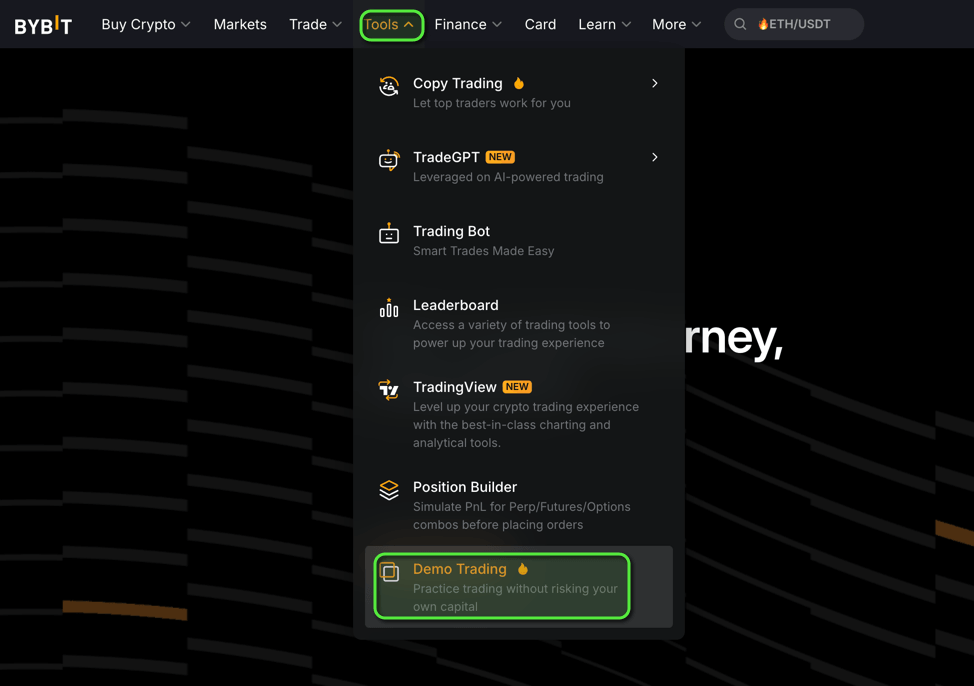
You are now in the paper-trading view. The top bar shows a Start Live Trading button, confirming demo mode. Switch back any time from there.
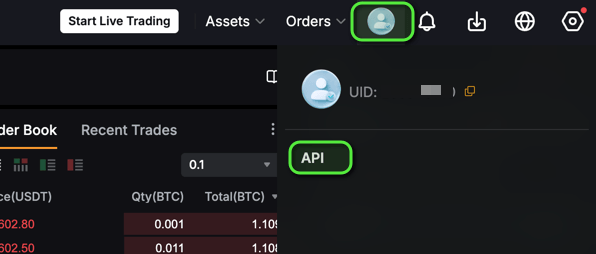
2. Open API management. Go to the API management page directly, or click the profile icon (top-right) → API. Then click Create New Key in the top-right of that page.
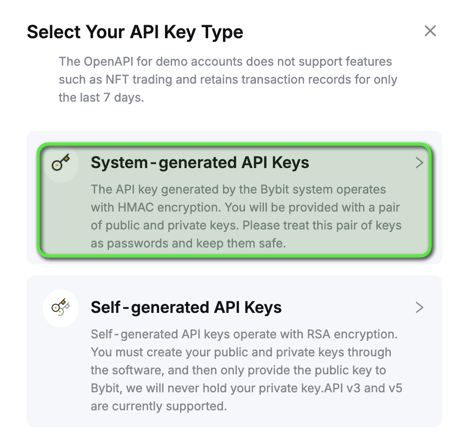
3. Pick the key type. Choose System-generated API Keys.
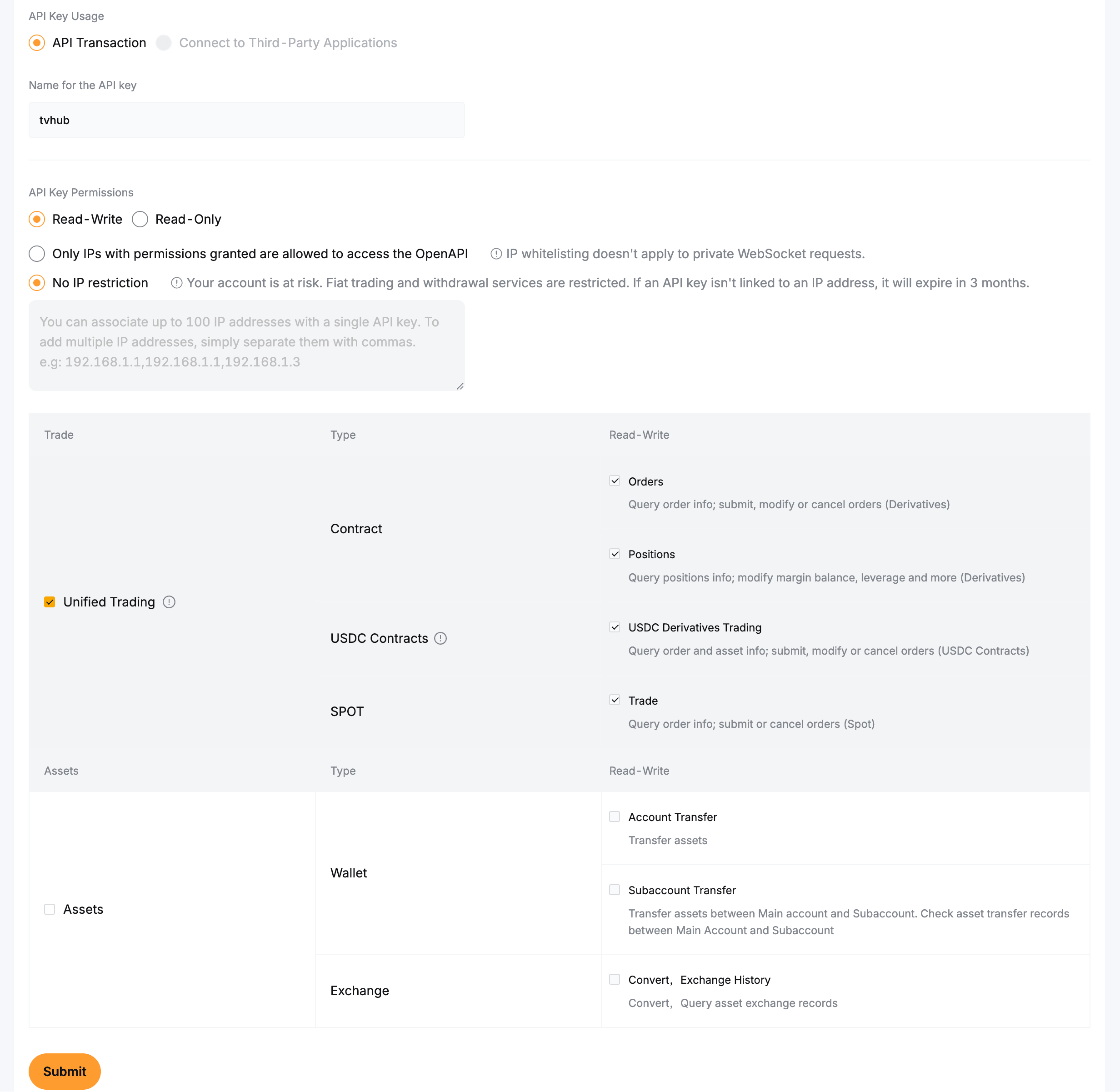
4. Set permissions and submit. Fill the form, then click Submit and pass 2FA:
- API Key Usage: API Transaction
- Name: anything, e.g.
tvhub - Permissions: Read-Write
- Enable Unified Trading (covers Contract + Spot)
- IP restriction is optional for a demo key
Copy the Public Key and Secret. You paste them into TVH next.
Step 2 — Add the demo key to TVH
In TVH, open Account → Settings → API Keys and click Add new.
- Pick Bybit from the exchange dropdown.
- Choose a name for the key, for example
bybit-demo. Your alert references this exact name in itsapiKeyfield. - Paste the demo Public Key and Secret.
- Tick Demo Account, then save.
Step 3 — Create TradingView alert with webhook URL
In TradingView, open a chart, click the alarm-clock icon, and choose Create Alert.
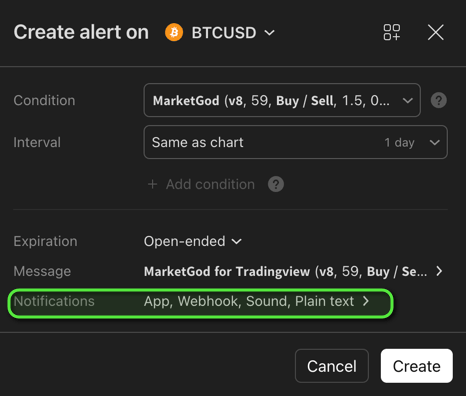
1. Condition. Pick a condition that will fire soon, for example a price crossing near the current price.
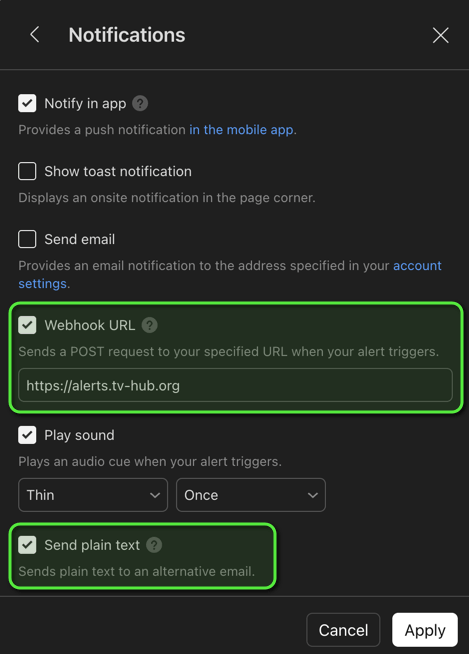
2. Notifications. Open the Notifications row and tick Webhook URL, then paste the TVH webhook URL:
3. Email backup (optional). Also tick Send plain text to enable email backup alerts, a fallback for the rare case a webhook is lost.
Related:
- Your webhook URL can differ per exchange (Binance uses its own subdomain), and some exchanges need the TVH IPs whitelisted. See Webhook URLs & IP Whitelist.
- Send plain text is what makes email backup work. See E-Mail Signals (Backup or Primary).
Step 4 — Create JSON webhook trade command
The alert's Message field carries the JSON trade command that tells TVH what to trade. Build it with the Trade Command Builder (open the Bybit builder, see Trade Command Builder for all options) or paste the simple example below.
Open the alert's Message field:
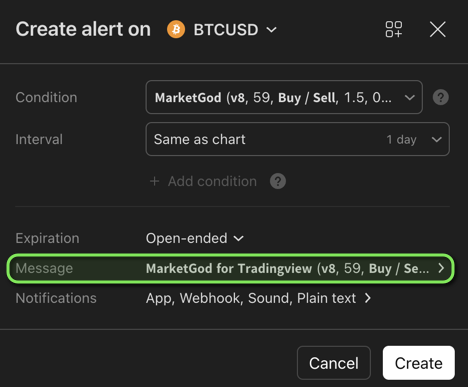
Paste this JSON and replace YOUR_TOKEN with your TVH user token:
{
  "exchange": "bybit",
  "pair": "BTCUSDT",
  "isBuy": true,
  "isMarket": true,
  "unitsType": "percent",
  "unitsPercent": 1,
  "apiKey": "bybit-demo",
  "token": "YOUR_TOKEN"
}
Your token is in Account → Settings. Treat it like a password.
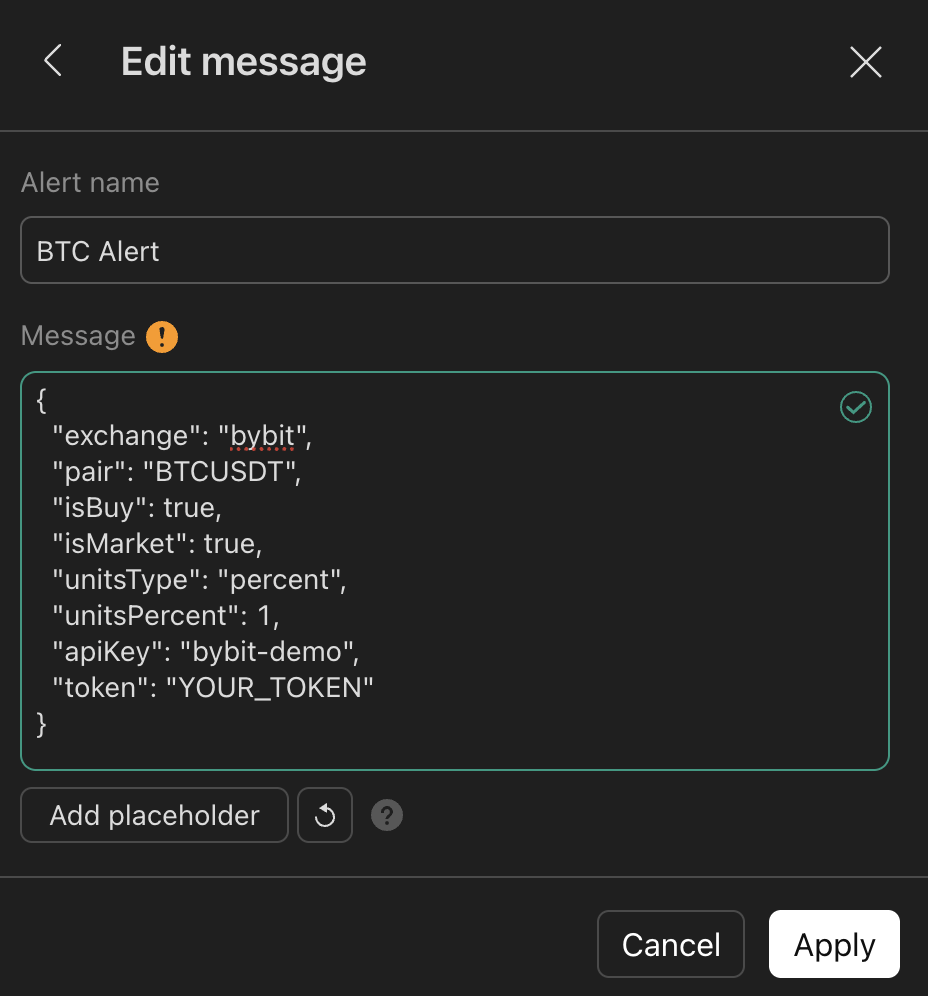
Then click Apply, and Create to save the alert.
Step 5 — Verify the trade
Once the alert fires, open your Activity Log in TVH. You should see the inbound signal and a successful demo order. If your UI labels this area as trade history or signal history, open the newest inbound signal there.
Start with Debug a Failed Trade Alert. Most issues are a wrong token, API-key name mismatch, wrong pair format, or demo/live mismatch.