Save, Load, and Paste Trade Commands
- Build a trade once, save it by name, load it later. Setups are stored server-side under your TVH account.
- Paste lets you take an existing JSON (from a running TradingView alert, a teammate, an old strategy) and visually edit it in the Trade Command Builder.
- Same workflow on every exchange page.
The Builder has a small icon toolbar at the top-left (new, Paste clipboard, Open folder) and an action bar at the bottom (Generate, Copy, Save, Execute now!).
Save a trade setup
- Configure the Trade Command Builder the way you want it.
- Click Generate to produce the JSON.
- Click Save in the action bar (next to Generate, Copy and Execute now!).
- Enter a name in the dialog and confirm.

The setup is stored on the TVH server under your account. It is not browser-local — you can access it from any device or browser as long as you log in.
Load a saved setup
- Click the Open (folder) icon in the Builder's top-left toolbar.

- The Load trade commands dialog lists every setup saved on the current exchange page (remove any with the trash icon).
- Click the one you want to load. The form populates with the saved values.

You can immediately tweak any field, generate a new JSON, and re-save (under a new name) or update the existing entry.
Paste an existing trade command
The most powerful workflow: take a JSON you already have and load it back into the Trade Command Builder for visual editing.
Use cases
- Edit a running TradingView alert without recreating it from scratch
- Share trade setups with team members (paste their JSON, customize, copy back)
- Migrate a TradeCommand you found in an old strategy file
- Debug a malformed alert message — the parser will reject it if anything is invalid
Steps
- Open your TradingView alert, click Edit, and copy the Message (the alert-message JSON).

- In the TVH Trade Command Builder, click the Paste (clipboard) icon in the top-left toolbar.

- Paste the JSON into the Paste your trade command! dialog and click OK.
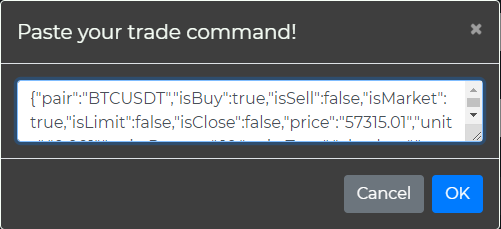
The form parses every field and fills in the controls — pair, direction, sizing, SL, TPs, DCA, hedge mode, sub-account routing, everything. Modify what you need, click Generate, copy the new JSON, paste it back into the TradingView alert. Done.
Full walkthrough video
Why this is useful
| Scenario | Workflow |
|---|---|
| Edit a live TradingView alert | Copy → Paste in TVH → Tweak → Copy → Paste back into TV |
| Share a setup with a teammate | Copy your JSON → Send it → Teammate pastes it into TVH |
| Build a library of templates | Save each "template" with a descriptive name (e.g. BTC-scalper-2pct-SL) |
| Convert manual into automated | Build a trade via Execute Directly → Save → Use the JSON in Pine |
Storage location
- Saved setups live on the TVH server, tied to your account.
- They are per-exchange (a setup saved on the Binance page is visible from the Binance page only).
- They are portable across browsers and devices as long as you log in to the same TVH account.
Common pitfalls
- Pasting invalid JSON → the dialog rejects it with an error. Fix syntax and try again. A common mistake is including extra commas or trailing whitespace.
- Field renaming over time → very old JSON from years ago might use deprecated field names. The Paste parser handles current schema; if you see "field not loaded", regenerate the JSON via the Trade Command Builder.
- Setups not visible across exchange pages → each exchange page has its own saved-setup list. A saved Binance Futures setup does not appear on the Bybit page.
- No version history → saving over a name overwrites the previous version. Save under a new name if you want to keep an old version.
What's next
- After saving / pasting, the next step is wiring it into a TradingView alert. See TradingView Alert Setup.
- For sharing a JSON template with a team, see Trade Command Anatomy.
- For batching multiple saved setups in one alert, see Batch Alerts & Timing.