Binance Demo
Binance supports the Demo Account checkbox for Spot and USD-M Futures (Coin-M is testnet-only). Demo orders use the live binance / binance-futures identifiers; the demo flag on your TVH key routes them to Binance's demo endpoint.
No Binance account yet? Sign up with our link.
Demo and paper trading on TVH are always free (even prop-firm demo accounts); you only need a subscription once you trade a live account.
- TradingView account with webhook support
- A free TradingView Hub account (no subscription needed for demo trading)
Binance runs paper trading on a separate portal: demo.binance.com. Create your demo API key there, then add it to TVH with the Demo Account box ticked.
Step 1 — Create your Binance demo key
You create the API key inside Binance's demo portal at demo.binance.com. It uses your normal Binance login and comes with virtual funds, so nothing here touches real money.
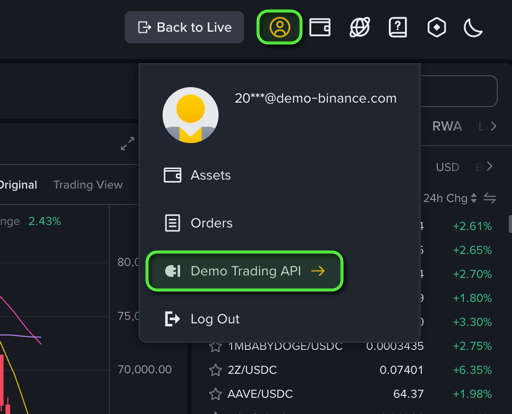
1. Open Demo Trading API. In the demo portal (the top bar shows Back to Live, confirming demo mode), click the profile icon (top-right) and choose Demo Trading API. You can also open it directly at demo.binance.com/en/my/settings/api-management.
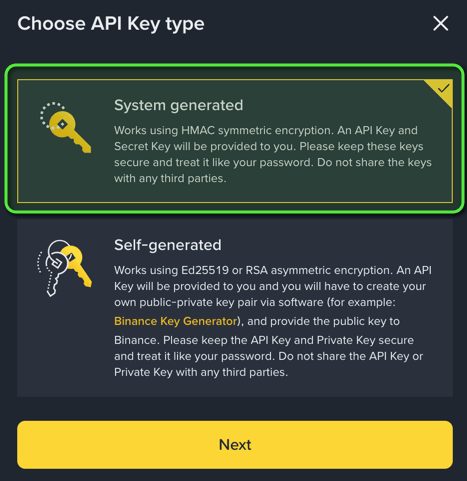
2. Pick the key type. Choose System generated, then click Next.
3. Label the key. Give it a name, for example tvhub, then click Next.

4. Copy the keys and set permissions. Copy the API Key and Secret Key now; the secret is shown only once. Under API restrictions, enable:
- Enable Reading
- Enable Spot & Margin & Stock Trading for the
binanceidentifier. - Enable Futures for the
binance-futuresidentifier.
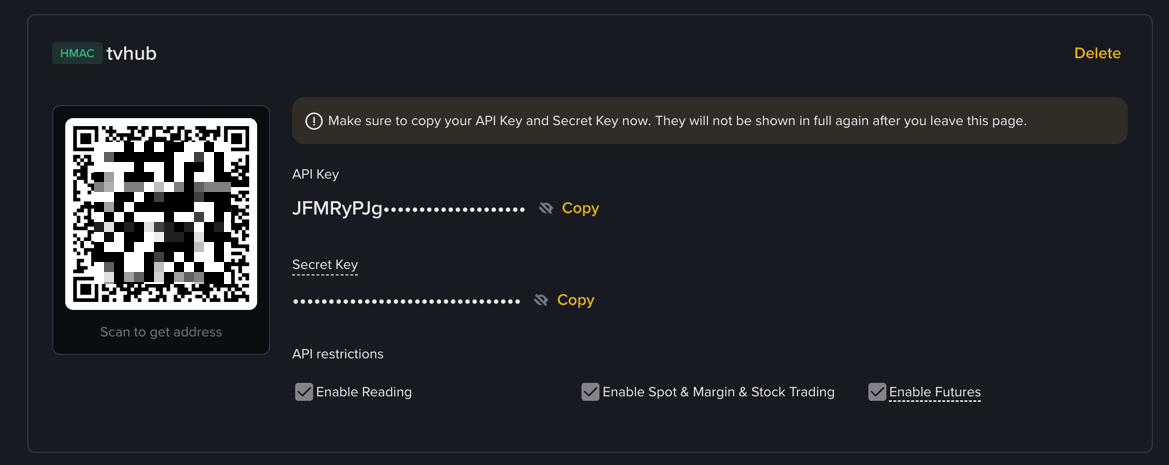
You add the API Key and Secret to TVH next.
Step 2 — Add the demo key to TVH
Open Account → Settings → API Keys and click Add new.
- Pick Binance (
binance) for Spot, or Binance Futures (binance-futures) for USD-M. To trade both, add the same key twice, once under each identifier. - Choose a name for the key, for example
binance-demo. Your alert references this exact name in itsapiKeyfield. - Paste the API Key and Secret.
- Tick Demo Account, then save.
- Open the Trade Command Builder and confirm your demo balance is shown. If it appears, the key is connected correctly.
Binance Coin-M has no demo path, so you use the testnet instead. Create an API key at testnet.binancefuture.com, add it to TVH under the binance-futures-coin-testnet identifier, and build commands in the testnet Trade Command Builder.
Binance no longer actively maintains the testnet, so expect occasional odd behaviour or errors.
Step 3 — Set up the TradingView alert
From here the alert setup is identical to the Quickstart. Follow the Quickstart alert setup to create the TradingView alert with the webhook URL, paste your JSON trade command, and verify the fill.
Use binance (or binance-futures) as the exchange in your JSON, and your Binance key name as apiKey:
{
  "exchange": "binance",
  "pair": "BTCUSDT",
  "isBuy": true,
  "isMarket": true,
  "unitsType": "percent",
  "unitsPercent": 1,
  "apiKey": "binance-demo",
  "token": "YOUR_TOKEN"
}