Bitget Demo
Bitget's demo trading runs on bitget.com itself, opened from the Futures menu. There is no separate demo site or login, and the exchange field in your alert stays bitget. The demo flag on your TVH key routes orders to Bitget's demo environment.
No Bitget account yet? Sign up with our link and trade free.
Demo and paper trading on TVH are always free (even prop-firm demo accounts); you only need a subscription once you trade a live account.
- TradingView account with webhook support
- A free TradingView Hub account (no subscription needed for demo trading)
A live key does not reach the demo environment, and a demo key does not reach your live account. Create the demo key inside demo trading, and keep it apart from your live key.
Step 1 — Create your Bitget demo key
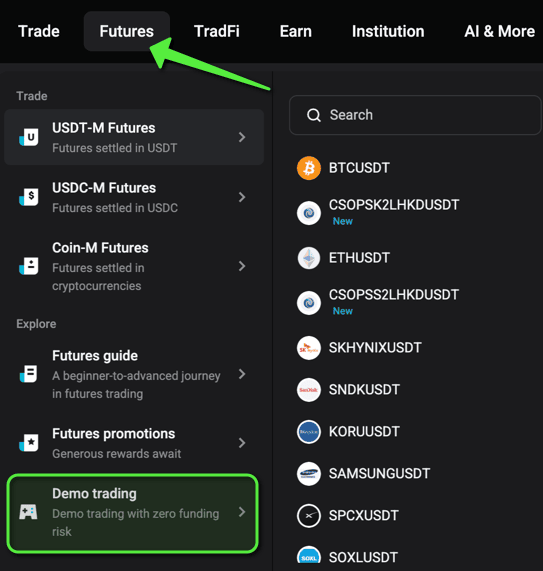
1. Open demo trading. In Bitget, open the Futures menu in the top navigation and choose Demo trading under Explore. The top bar then shows a Live button, confirming demo mode.
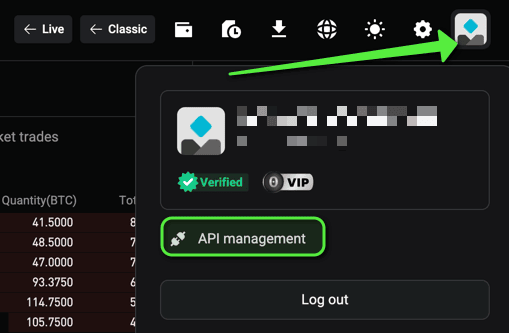
2. Open API management. Click the profile icon (top-right) and choose API management. The demo menu is shorter than the live one and holds little more than this entry.
3. Create the key. From the Create API key button on, the demo form is the same as the live one. Follow steps 2 to 8 of Bitget → API key creation: the System-generated key type, the note and passphrase, the Read-write permission, the Futures Orders, Futures Holdings and Spot Trade permission types, and TVH's IP list in the IP field.
Copy the API Key, Secret, and Passphrase. You add all three to TVH next.
Bitget's demo listed 3 futures contracts against around 770 on live, measured on 2026-08-31. RWA contracts are not among them. Test your wiring there, and check the symbol you actually want to trade against the live list.
Step 2 — Add the demo key to TVH
Open Account → Settings → API Keys and click Add new.
- Pick Bitget from the exchange dropdown.
- Choose a name for the key, for example
bitget-demo. Your alert references this exact name in itsapiKeyfield. - Paste the API Key, Secret, and Passphrase.
- Tick Demo Account, then save.
- Open the Trade Command Builder and confirm your demo balance is shown. If it appears, the key is connected correctly.
A demo key skips the referral read, because the demo environment does not answer the live account call. TVH activates it straight away.
Step 3 — Set up the TradingView alert
From here the alert setup is identical to the Quickstart. Follow the Quickstart alert setup to create the TradingView alert with the webhook URL, paste your JSON trade command, and verify the fill.
Use bitget as the exchange and Bitget's plain pair format (BTCUSDT):
{
  "exchange": "bitget",
  "pair": "BTCUSDT",
  "isBuy": true,
  "isMarket": true,
  "unitsType": "percentBalance",
  "unitsPercent": 1,
  "leverage": 5,
  "apiKey": "bitget-demo",
  "token": "YOUR_TOKEN"
}