Bitget — USDT Futures and Spot
Bitget is the newest venue in the TVH lineup. Two things set it apart from the exchanges next to it on this list. The credentials are a key, a secret and a passphrase, and an account opened through our partner link trades free. There is no subscription to buy. A third thing shapes the symbol list: around 300 of Bitget's futures contracts track stocks, indices, ETFs, precious metals and energy, and those keep market hours.
- Exchange identifiers:
bitgetfor USDT-margined futures,bitget-spotfor spot - Credentials are key + secret + passphrase. A key without its passphrase cannot authenticate
- One key covers both Bitget markets. You add it once
- Free to use on an account created through partner.bitget.com/bg/tvhub. Start offer: every Bitget key trades free until 31 October 2026
- Symbol format:
BTCUSDT— plain, no separator, on both markets - No third-party binding. The key carries TVH's IP list
- Hedge mode is supported. Leverage and margin type come from the signal
- Around 300 contracts are RWA — stocks, indices, ETFs, metals, energy. They trade on market hours, not around the clock, and carry the label
(RWA)in the Trade Command Builder - Demo via the Demo Account checkbox on the key. Demo and live each need their own key, and the checkbox says which environment the key comes from
- Uses
https://alerts.tv-hub.org
Webhook URL
Bitget uses the default endpoint:
API key creation
Bitget has no third-party app binding, so the key carries TVH's IP list instead.
-
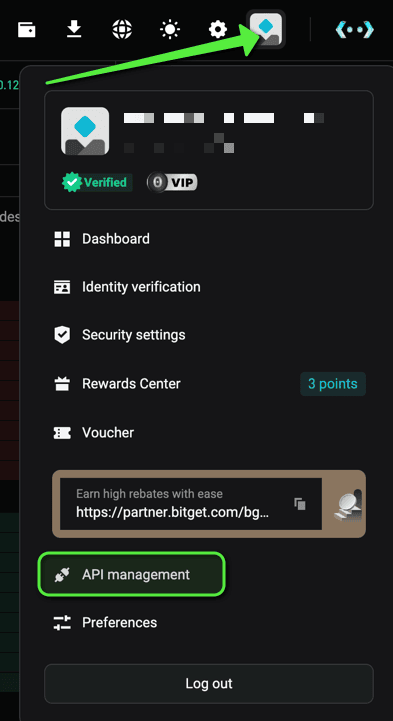
Log in at Bitget and open API management from the profile menu in the top right, or go straight to bitget.com/account/newapi.
-
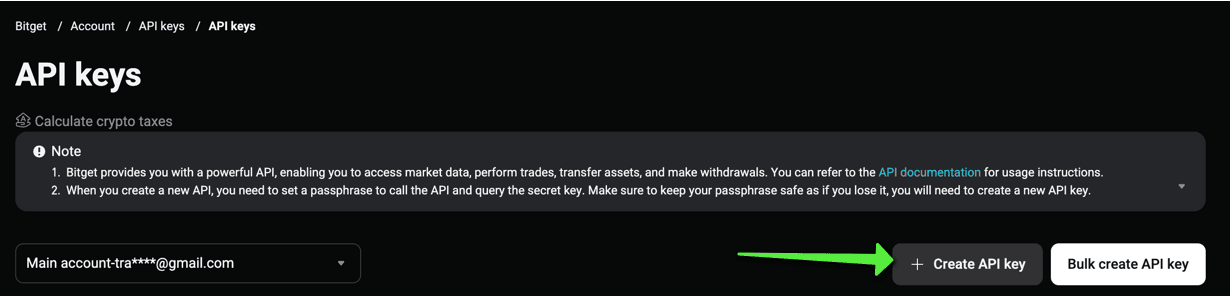
Click Create API key on the API keys page.
-
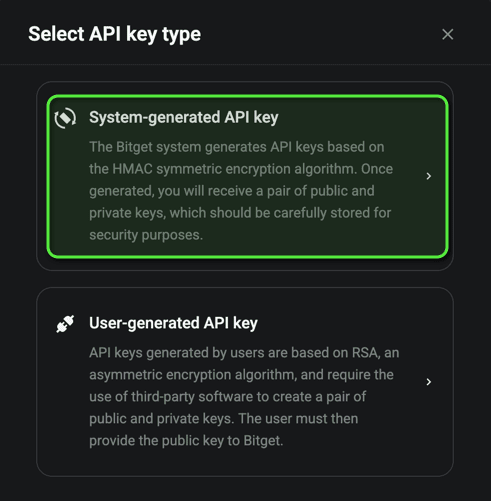
Choose System-generated API key. Bitget then builds the key pair for you. The User-generated type expects an RSA public key of your own, and TVH does not use it.
-
Fill the form:
- Note — a name of your choice, for example
tvhub. - Passphrase — set one yourself, 8 to 32 alphanumeric characters. You need this exact string in TVH.
- Permissions — pick Read-write. A Read-only key cannot trade, and TVH refuses it when you add it.

- Note — a name of your choice, for example
-
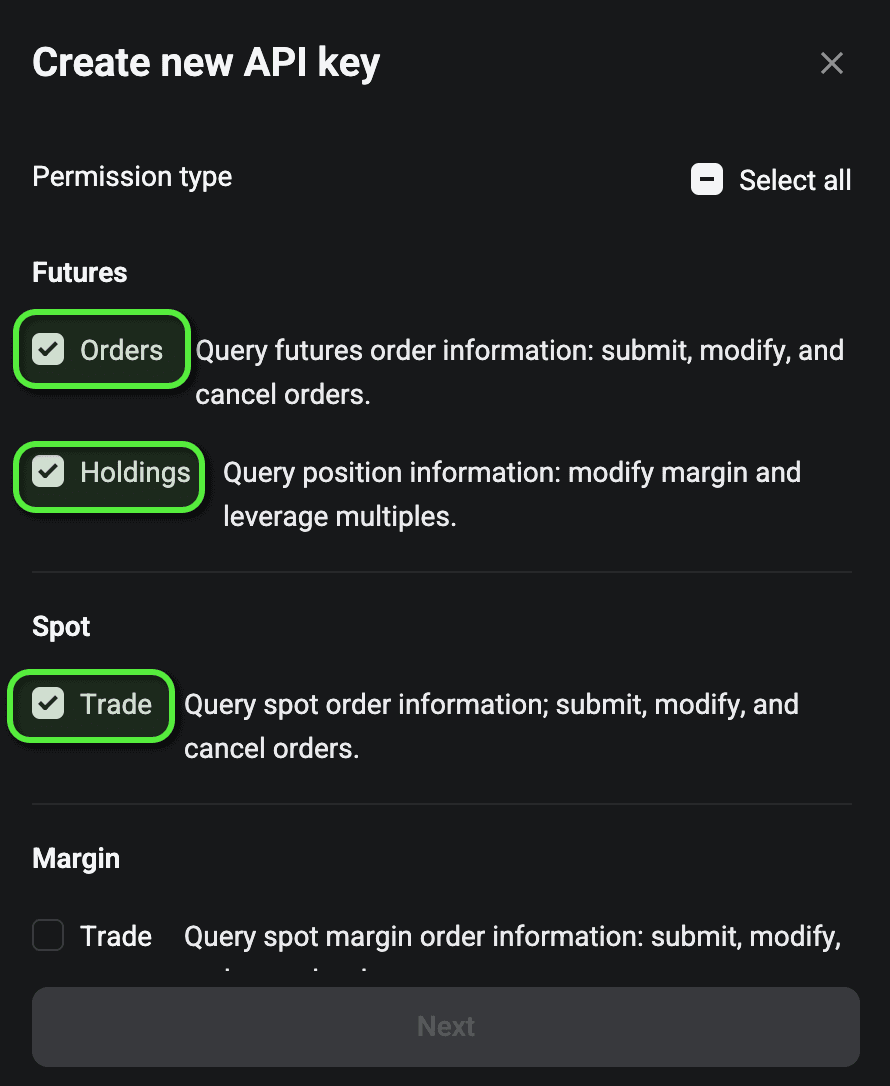
Tick the permission types below the form: Futures Orders, Futures Holdings and Spot Trade. Leave every withdrawal permission off.
-
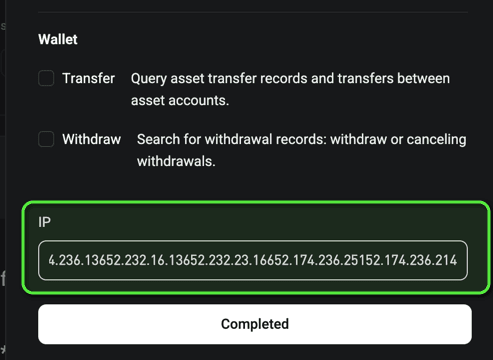
Paste the IP list below into the IP field at the bottom of the form.
-
Confirm the dialog and pass the security verification.
-
Copy the API key, the secret and the passphrase, then add all three at Account → Settings → API Keys and pick
Bitgetin the Exchange dropdown.
The same steps with screenshots sit behind the How to link on the API Keys page.
Bitget signs every request with the passphrase. It is not a second password you can leave out: a key stored without it authenticates nothing, and TVH refuses to save it. You choose the passphrase yourself in step 2, and Bitget never shows it again.
IP list for step 6
Bitget binds the key to these addresses. Paste them into the IP field of the key form:
52.178.43.209 13.81.120.121 23.101.74.176 104.40.189.59 23.101.70.119 52.178.46.226 52.166.118.167 20.82.83.137 20.82.84.106 20.82.84.161 20.82.85.24 20.82.85.156 20.82.86.9 20.82.86.122 20.82.87.61 20.101.240.10 20.101.240.38 20.101.241.140 20.101.241.203 50.85.64.231 13.69.68.7 52.174.236.207 52.174.236.246 52.174.236.136 52.232.16.136 52.232.23.166 52.174.236.251 52.174.236.214What TVH reads when you add the key
One read of your Bitget account answers three questions at once: the key is valid, it carries the trading permission, and the account carries our referral. A key without trading permission is refused when you add it, not at your first signal. The Bitget user id from that read is stored on the key, so support can look your account up without asking you for it.
If Bitget cannot be reached, the key is saved unactivated and says so. The Re-check button on the key row repeats the read and fills in what was missing. TVH never reports "no referral" for a read that failed.

Free trading through the referral
An account registered through our partner link trades free. TVH reads the inviter your Bitget account states and activates the key on that alone, so nothing is asked of you and nothing has to be proved by hand.
Until that date every Bitget key trades free, whichever account it belongs to. Seven days before the date the handout falls back to the normal 7 day trial, so nobody receives a key with one day left on it. After the date, the referral or a subscription carries the key.
A Bitget sub-account carries no inviter of its own, because the referral hangs on the main account. TVH therefore activates a sub-account key when you already hold an activated key of that main account under the same TVH account. Add the main-account key first, then the sub-account key.
The order matters. A sub-account key you add first is saved unactivated. Add the main-account key afterwards, then press Re-check on the sub-account key to activate it.
The main-account key has to be activated by the referral. A main account that only trades free through the start offer is not enough. Without an activated main-account key the sub-account key needs a subscription.
Sub-accounts
Bitget sub-accounts are routed via the named apiKey field — one TVH key per sub-account. Each sub-account needs its own exchange key with its own passphrase, and that key carries the same permissions as a main-account key: Read-write, Futures Orders, Futures Holdings, Spot Trade, no withdrawal, plus TVH's IP list.
A sub-account key is activated only while you already hold an activated key of its main account under the same TVH account. Add them in that order. The rules, and what to do if you added them the other way round, are in Free trading through the referral.
-
Log in to your Bitget main account and open Sub-accounts from the profile menu in the top right, or go straight to bitget.com/account/sub-account.
-
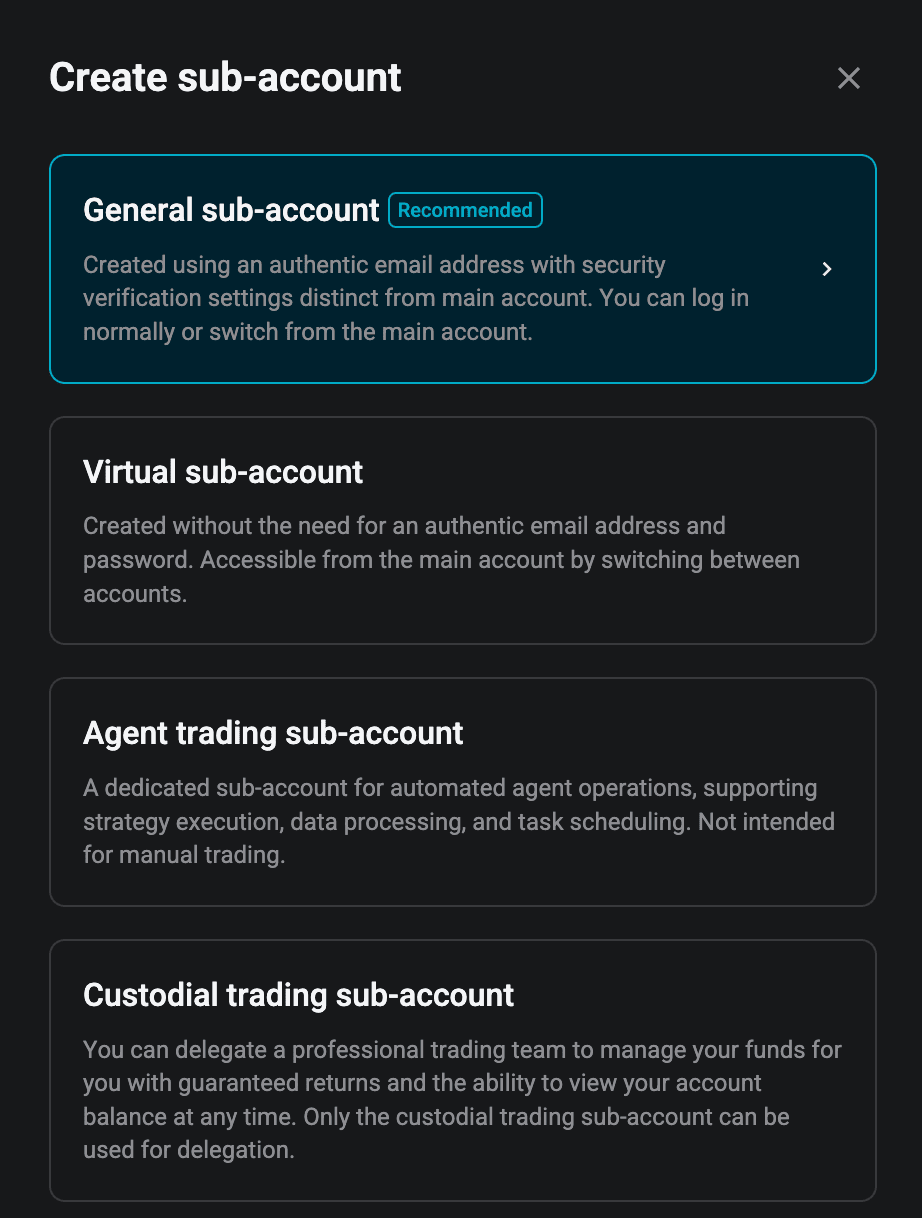
Click Create sub-account and pick General sub-account. It gets its own email address and its own login, and you can still switch into it from the main account.
-
Fill the form with the sub-account's email address, account name and password. At the bottom, switch Create API on.

-
The key form opens inside the sub-account form. Fill it exactly as in API key creation above: a note, a passphrase of your own, Read-write, the three permission types, and the IP list below.

-
Click Create, pass the security verification and copy the key, the secret and the passphrase. Add all three in TVH under
Bitgetwith a name of their own, for examplebitget-sub1, and target that name from your payload:
{
  "exchange": "bitget",
  "pair": "BTCUSDT",
  "apiKey": "bitget-sub1",
  "isMarket": true,
  "isBuy": true,
  "unitsType": "percentBalance",
  "unitsPercent": 25
}
Creating the key later
If you skipped the Create API switch, you can mint the key inside the sub-account at any time. Click Switch account on the sub-account.

Pick the sub-account in the dialog.

You are now inside the sub-account, and the key creation is the same flow as API key creation. The same switch takes you back to the main account. Remember to fund each sub-account before it trades.
IP list for step 4
Every sub-account key carries the same IP list as a main-account key, on both ways shown above. Paste it into the IP field of the key form:
52.178.43.209 13.81.120.121 23.101.74.176 104.40.189.59 23.101.70.119 52.178.46.226 52.166.118.167 20.82.83.137 20.82.84.106 20.82.84.161 20.82.85.24 20.82.85.156 20.82.86.9 20.82.86.122 20.82.87.61 20.101.240.10 20.101.240.38 20.101.241.140 20.101.241.203 50.85.64.231 13.69.68.7 52.174.236.207 52.174.236.246 52.174.236.136 52.232.16.136 52.232.23.166 52.174.236.251 52.174.236.214Demo trading
Bitget's demo trading has its own API key. Create it in Bitget's demo environment, add it in TVH and tick Demo Account on it. Your orders then go to Bitget's demo environment; the exchange field in your payload stays bitget. There is no separate identifier, only a separate key. Full setup: Demo Accounts → Bitget.
A demo key skips the referral read, because the demo environment does not answer the live account call. It is activated straight away.
Bitget's demo listed 3 futures contracts against around 770 on live, measured on 2026-08-31. RWA contracts are not among them. Test your wiring there, but check the symbol you actually want to trade against the live list.
Futures
| Field | Value |
|---|---|
| Exchange identifier | bitget (futures), bitget-spot (see Spot) |
| Webhook URL | https://alerts.tv-hub.org |
| Symbol format | BTCUSDT, ETHUSDT — plain, no separator |
| Margin | USDT-margined |
| Position mode | One-way and hedge — see Hedge mode |
| Margin type | isolated or cross, taken from the signal |
| Max leverage | Exchange-set per contract — 150× on BTCUSDT, 20× on most RWA contracts and 100× at the top |
| Sub-account support | ✅ Add the sub-account key as its own key. It inherits the referral from its main account, see above |
| Demo support | ✅ Demo Account checkbox → Bitget demo environment |
Example payload:
{
  "token": "your-tvh-token",
  "apiKey": "your-key-name",
  "exchange": "bitget",
  "pair": "BTCUSDT",
  "isMarket": true,
  "isBuy": true,
  "units": 0.01,
  "leverage": 5,
  "marginType": "isolated"
}
Spot
Send "exchange": "bitget-spot" to trade the Bitget spot market. The key, the webhook URL and the symbol format are the same as on futures, so a key you already added for bitget trades spot too.
{
  "token": "your-tvh-token",
  "apiKey": "your-key-name",
  "exchange": "bitget-spot",
  "pair": "BTCUSDT",
  "isMarket": true,
  "isBuy": true,
  "useFixedSize": true,
  "fixedQuoteSize": 50,
  "stopLossType": "percent",
  "stopLossPercent": 3
}
What differs from futures:
- No leverage, margin type or hedge mode. Those fields are ignored on spot. A buy opens the position, a sell closes it.
- The stop loss is a separate trigger order on Bitget. It sells your base balance when the price falls to the stop. It covers the position size at the moment TVH arms it. A DCA rung or a limit entry that fills later does not resize it, and TVH writes that limit to your Activity Log.
- No trailing stop. Bitget spot has no trailing order type. A signal that asks for one gets the refusal in the Activity Log, and no fixed stop is put in its place.
- Fees come out of the asset you receive. A buy pays its fee in the base asset, so a close sells what your wallet holds, not the filled quantity.
- Minimum order value is 1 USDT on every spot pair.
- The spot demo is small. Bitget's demo runs its own simulated spot order book with about 25 symbols and prices that differ from live. Use it to test the wiring, not the strategy.
Symbol format
The canonical form is Bitget's own spelling: BTCUSDT, plain, with the quote asset attached and no separator. The Trade Command Builder fills that in for you.
You do not have to send it in that form. TVH resolves what arrives against Bitget's contract list before anything is ordered, so a TradingView ticker pasted straight off the chart works. Candidates are tried in this order and the first one that exists on the exchange wins:
- the symbol unchanged — a contract whose name already matches wins over any rewrite of it
- without a trailing
.P— TradingView's perpetual suffix describes the chart, not the order - with
/and-removed —BTC-USDTandBTC/USDTboth giveBTCUSDT
So BTCUSDT, BTCUSDT.P, BTC-USDT and BTC/USDT all reach the same contract. Matching ignores case, and the exchange's spelling is what gets sent.
No quote asset is ever stripped. Bitget contract names carry it, so a bare BTC matches nothing and the error names every form that was tried.
See also: Symbol format reference.
Hedge mode
Bitget accounts ship in hedge mode. TVH follows the hedgeMode field of your signal and switches the account's position mode to match before it trades. An open position or a resting order can block that switch. If Bitget refuses it, the signal stops with the reason in your Activity Log instead of trading in the wrong mode.
In hedge mode a long and a short live side by side on the same symbol, and each side carries its own leverage. See Hedge Mode for the payload side of it.
RWA contracts
Bitget's USDT futures list held around 770 contracts, of which around 300 are RWA, measured on 2026-08-31: stocks, indices, ETFs, precious metals and energy. Both numbers move when Bitget lists or delists. They sit in the same product type as BTCUSDT, so they arrive in the same symbol list. The Trade Command Builder marks them with the label (RWA).
Two differences matter before you point a strategy at one:
- They keep market hours. An RWA contract tracks a real market and trades on that market's session, not around the clock. A signal that arrives while the session is closed cannot fill.
- The price band is tighter and the leverage cap lower. Most RWA contracts allow 2% away from the market against 5% on
BTCUSDT. The leverage cap is set per contract and stays far below the 150× ofBTCUSDT: the large majority allow 20×, and only about 15 of them reach 100×. A limit order or a DCA rung placed past the band is refused by the exchange.
A 24/7 crypto strategy moved onto an RWA symbol goes quiet outside the session. Check the hours of the underlying market before you go live, and read Timing & idempotency for what happens to a signal that cannot be filled right away.
Prices and sizes
Bitget states price precision as a decimal count plus a step in units of the last decimal, not as a tick size. TVH converts the two into a tick and rounds your price onto it. The exchange refuses an off-tick price with error 45115 rather than rounding it itself, so let TVH do the rounding.
Every contract carries its own minimum quantity and minimum order value. An order below either one is refused before it is sent, with a message that names the contract and the minimum it missed. Keep that in mind for percentage-based sizing on a small account.
Bitget keeps the two wallets apart, and TVH never moves funds between them. If a futures signal fails for lack of USDT while the money sits in your spot wallet, the error names the spot wallet and its balance, so you can see what happened. Transfer it on Bitget yourself.
Common Bitget quirks
- The passphrase is mandatory. It is part of the request signature, not an optional extra. See the caution above.
- The key needs TVH's IP list. Bitget has no third-party app binding, so the IP field carries the list. See API key creation.
- A Read-only key is refused. Bitget asks for Read-write against Read-only on the key form, and only Read-write can trade.
- Accounts ship in hedge mode. TVH switches the mode to match your signal and stops with a named reason if the switch is refused.
- Around 300 contracts are RWA. They keep market hours, band most prices at 2%, and cap leverage per contract, 20× on the majority. See RWA contracts.
- Symbol names carry the quote asset.
BTCUSDT, never a bareBTC. Separators and a trailing.Pare removed for you. - Precision is a decimal count, not a step. TVH derives the tick; an off-tick price comes back as
45115. - Spot and futures wallets are separate. No transfer happens on your behalf.
- A sub-account key inherits the referral. The referral hangs on the main account, so add an activated main-account key first. See Free trading through the referral.
- The demo lists very few contracts. Wiring tests only; check your symbol against the live list.
Feature support
| Feature | Bitget Futures | Bitget Spot |
|---|---|---|
| Market & Limit orders | ✅ | ✅ |
| Multiple TPs | ✅ | ✅ |
| Stop Loss | ✅ | ⚠️ Trigger order, covers the size at arming time |
| Trailing Stop | ✅ Native, no client-side watching | ❌ |
| Move SL to break-even | ✅ | ✅ |
| DCA / Scaled Orders | ✅ | ✅ |
| Limit Order Chasing | ✅ postOnly until the last round | ✅ |
updateCurrentLimitOrder | ✅ | ✅ |
| Hedge Mode | ✅ hedgeMode, switched per signal | n/a |
| Sub-Accounts | ✅ Own key per sub-account | ✅ Same key as futures |
| Demo Account checkbox | ✅ | ✅ |
Full matrix: Exchange Quirks Reference.
Related
- Common Setup — universal flow
- Hedge Mode — long and short on the same pair
- Futures Options —
leverage,marginType,hedgeMode - Max Exposure Multiple — the cap on position notional
- Exchange Quirks Reference