Follow a Signal — Create a Copy Trade
- Following a signal is two steps: pick the signal source, then build a Copy Trade — a
TradeCommandtemplate that defines how broadcasts execute on your account. - The Copy Trade is yours to configure: size, leverage, optional SL/TP overrides, even a different exchange.
- Use
unitsType: "signalSource"if you want to inherit the provider's size/leverage automatically — useful when the provider risk-sizes carefully and you trust them. - Followers must follow each signal explicitly. Inviting someone to a signal does not auto-subscribe them.
This page walks through creating a Copy Trade against a Signal Source. The flow is identical whether you are following someone else's signal or your own.
10-step walkthrough
Step 1 — Open the Signals tab
Go to Account → Copy Trading and open the Signals tab. It lists every signal you own plus every signal you have been invited to.
Step 2 — Click the signal you want to follow
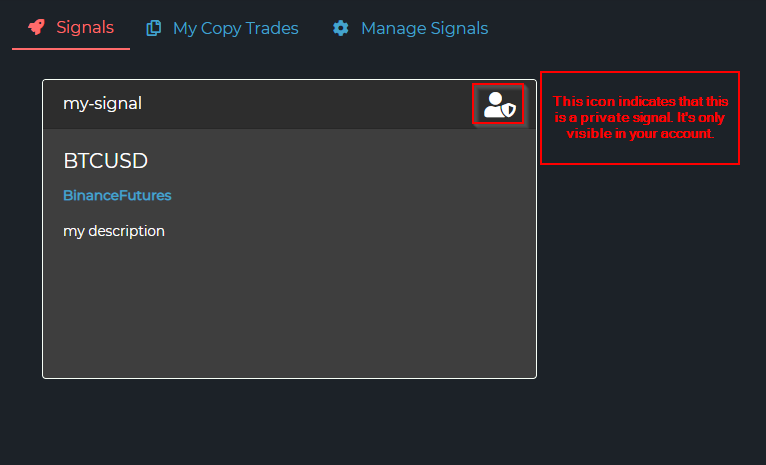
Each signal shows up as a card with its pairs, exchange, and description. The small icon in the top-right corner tells you the signal's visibility — a private signal (visible only to you) versus a shared signal (one shared with you, or one you have shared with others). Click the card to open it.
Step 3 — Click "Create Copy Trade"
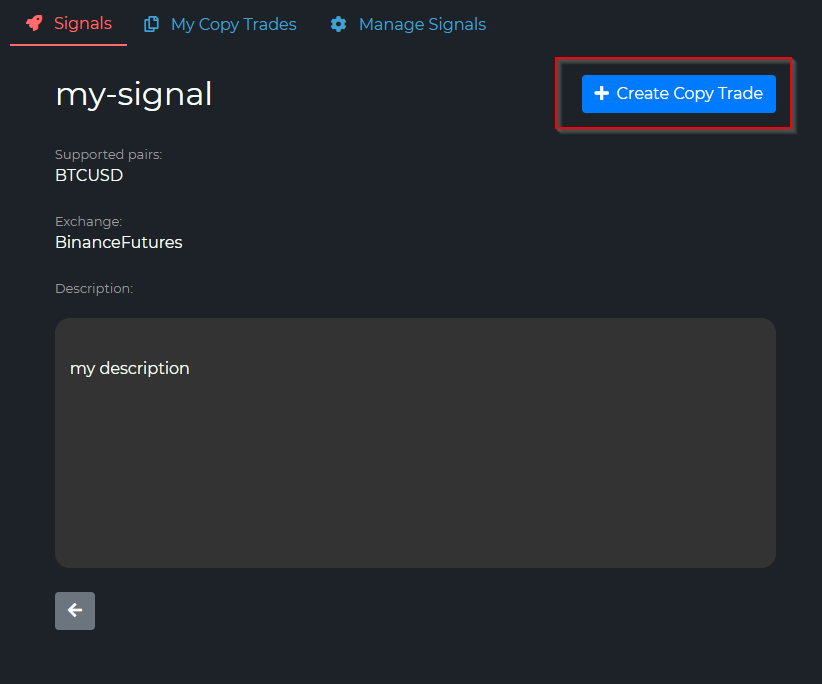
The detail view shows the provider's supported pairs, exchange, and description. Click Create Copy Trade in the top-right. This creates an empty Copy Trade slot. It is not active yet — you still need to attach a TradeCommand template to it.
Step 4 — Give the Copy Trade a name

Use something descriptive, especially if you plan to copy the same signal multiple times with different settings:
BTC Scalper — Binance Futures 3xBTC Scalper — Bybit Mirror 5xBTC Scalper — Conservative 1% Balance
Step 5 — Find it under "My Copy Trades"
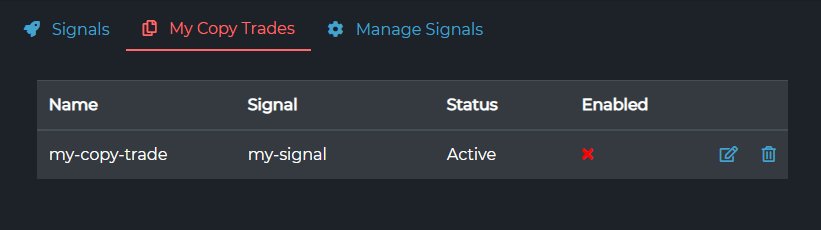
The new Copy Trade appears in the list. It is disabled — broadcasts will not execute until you complete steps 6-8.
Step 6 — Open the Trade Command Builder
Go to the Trade Command Builder for the exchange you want this Copy Trade to execute on. It does not have to match the provider's exchange — see Cross-exchange follow below.
Activate the Create copy-trade signal switch and pick your signal source from the dropdown.
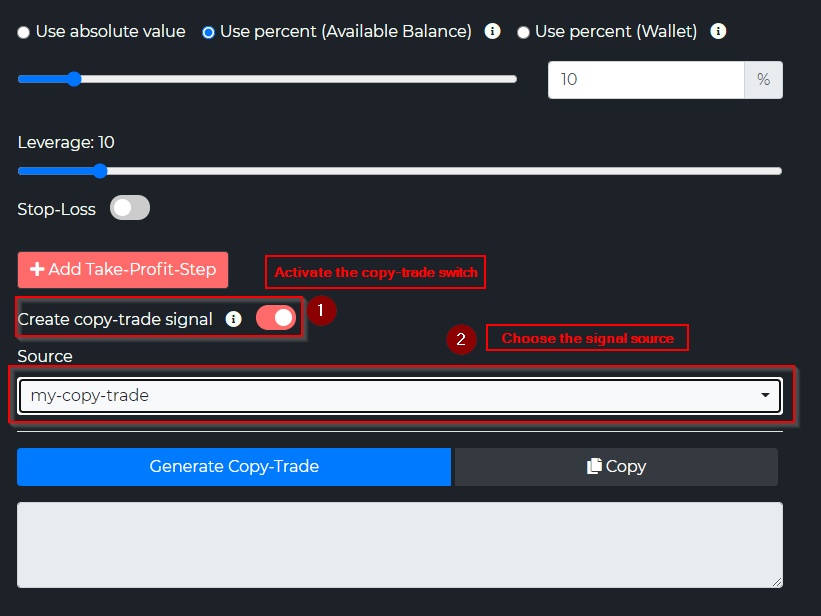
Step 7 — Configure trade properties
This is the heart of the override system. You are building a TradeCommand that gets layered on top of every broadcast. Set the fields you want to control and leave the rest at their default values.
| Setting | What it controls | Notes |
|---|---|---|
Position size (unitsType + unitsPercent / units) | How big your trade is | Choose absolute, percent, percentBalance, percentPosition, percentWallet, risk, or the special signalSource (inherit from provider). |
| Leverage | Futures leverage | Set to your tolerance. Ignored when unitsType: "signalSource". |
| Margin type | cross or isolated | Same — ignored when inheriting. |
| Stop Loss | Override the provider's SL | If left at 0, the provider's SL (if any) is used. |
| Take Profits | Override the provider's targets | If you leave Targets empty, the provider's targets carry through. |
| Trailing SL, BE, etc. | Anything in the parameter reference | All optional. |
The override rule: if your Copy Trade leaves a field empty (size = 0, no targets, no SL), the broadcast's value wins. If you set a value, yours wins. The provider only defines defaults — the follower has final say.
To inherit from the source instead of overriding, simply leave the control disabled in the builder: don't switch on Stop-Loss and the provider's SL carries through; add no Take-Profit steps and the provider's TPs carry through. For sizing, pick the Signal Source option and the source's size, leverage, and margin type are inherited in one go. See How override works for the field-by-field table.
The shape of the saved Copy Trade TradeCommand is identical to a regular trade — see TradeCommand Anatomy for the structure of the JSON the Trade Command Builder generates.
Step 8 — Click "Generate Copy Trade"
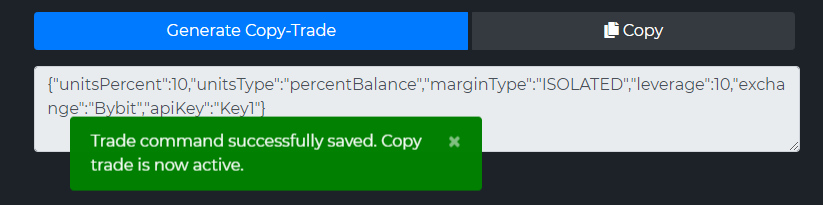
This serializes the Trade Command Builder into a TradeCommand JSON and saves it as your Copy Trade's template. A green confirmation ("Trade command successfully saved. Copy trade is now active.") appears, and the JSON shows only the fields you set — for example unitsType, leverage, exchange, and apiKey. You do not have to paste anything into TradingView — Copy Trades fire automatically when the signal source broadcasts.
Step 9 — Verify it is enabled
Back in My Copy Trades, the entry is now enabled (a green toggle, or however the UI version expresses "active"). Broadcasts from this signal source now execute on your account.
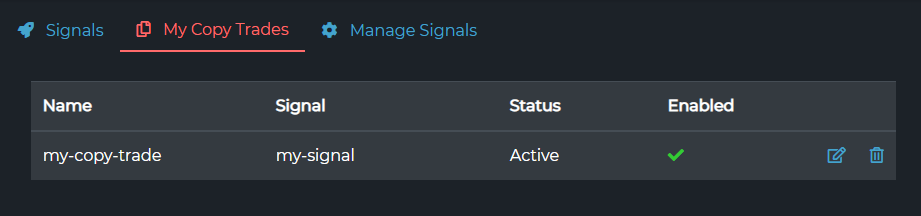
Step 10 — Edit, pause, or remove
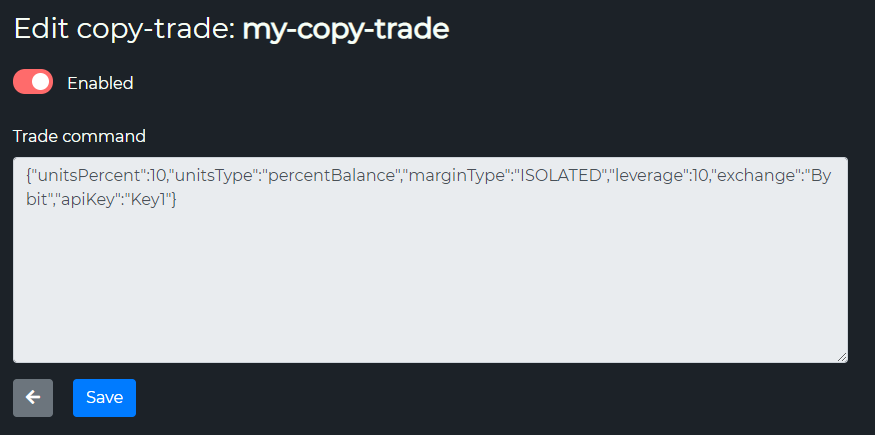
From the same list, the edit (pencil) icon opens a simple Edit copy-trade page: an Enabled toggle and the saved TradeCommand shown as raw JSON in a text box, with Save at the bottom.
- Edit the command — adjust the JSON directly, or rebuild it in the Trade Command Builder, copy the new JSON, and paste it in. Click Save.
- Enabled toggle — flip it off to pause the Copy Trade without deleting it. Useful around holidays, news events, or while you re-evaluate the provider.
- Delete (trash icon, in the list) — removes the Copy Trade entirely. Broadcasts stop arriving immediately.
How override works
When a broadcast fires, TVH processes every active follower of the signal source and does the following:
- Takes the broadcast (provider's full
TradeCommand). - Loads the follower's saved Copy Trade
TradeCommandtemplate. - For each field, decides who wins (see the table below).
- Sends the merged command to the follower's exchange via the follower's own API key.
| Broadcast field | Follower's Copy Trade field | Who wins |
|---|---|---|
pair | (always taken from broadcast) | Provider |
isBuy / isSell / isClose / orderType | (always taken from broadcast) | Provider |
isMarket / isLimit | (always taken from broadcast) | Provider |
Size (units, unitsPercent, unitsType, leverage, marginType) | Follower's own values unless unitsType: "signalSource" | Follower (or inherit if signalSource) |
stopLoss / stopLossPercent / stopLossType | Follower's value if non-zero | Follower if set, else provider |
targets (TPs) | Follower's targets if non-empty | Follower if set, else provider |
useTrailingStopLoss, trailingStopLossPercent, stopLossToBreakEven | Always taken from broadcast | Provider |
useDca, dcaPercent, dcaOrderCount | Always taken from broadcast | Provider |
preventPyramiding, reduceOnly, hedgeMode, workingType, etc. | Always taken from broadcast | Provider |
The high-level summary: the follower decides size and risk caps; the provider decides everything else.
The signalSource shortcut for sizing
If your follower form sets unitsType: "signalSource", the broadcast overwrites your Copy Trade's unitsType, unitsPercent, units, leverage, marginType, useFixedSize, and fixedQuoteSize with the provider's values.
Use this when you trust the provider's sizing model (for example a fixed 1% risk model) and want to mirror it exactly without copy-pasting their numbers.
{
  "exchange": "bybit",
  "pair": "BTCUSDT",
  "unitsType": "signalSource",
  "broadcastSignal": "f3e7c1a4-...-9b2d",
  "token": "YOUR_TVH_TOKEN"
}
Following on a different exchange
Cross-exchange copy trading works as long as the pair symbol is identical on both exchanges.
| Provider exchange | Follower exchange | Pair handling | Works? |
|---|---|---|---|
| Binance Futures | Bybit Futures | Both use BTCUSDT | ✅ |
| Binance Futures | OKX Swap | Binance: BTCUSDT · OKX: BTC-USDT-SWAP | ❌ (pair mismatch) |
| Binance Futures | Your second Binance account | Same exchange, same pair | ✅ |
| Bybit Spot | KuCoin Spot | Both use BTCUSDT | ✅ |
| Binance Spot | Coinbase Spot | Binance: BTCUSDT · Coinbase: BTC-USD | ❌ |
When pair formats differ between exchanges, the broadcast arrives but the follower's exchange rejects the order. See the Exchange Quirks Reference for the symbol conventions of each exchange.
Pausing or removing a Copy Trade
The simplest way to pause is to open the Copy Trade from My Copy Trades (the edit/pencil icon) and flip the Enabled toggle off on the Edit copy-trade page. The config is kept; flip it back on whenever you want.
| Action | Effect |
|---|---|
| Enabled toggle off (on the Edit copy-trade page) | Broadcasts stop executing on your account immediately. Your config is preserved. Toggle back on whenever you want. |
| Delete (trash icon in the list) | Removes the Copy Trade. Broadcasts stop, and you lose the saved template. To resume, repeat steps 3-8. |
| Provider deletes the signal | All follower Copy Trades against that signal become unreachable. Re-subscribe if the provider re-creates the signal (it gets a new ID). |
| Provider revokes your invitation | Same as above — your Copy Trade becomes inert until they re-invite you. |
For day-to-day risk management — for example pausing around CPI days or FOMC — use the Enabled toggle. Reserve delete for "I am done with this provider for good".
Next steps
- Want to share your own signal with friends or paying subscribers? → Share with Others
- Ready to broadcast from your own strategy? → Broadcast a Signal
- Reviewing risk before going live? → Risk Management